Case study 2026 Web app
Little Finds拾光小本
You save a lot, and rarely open any of it again.
- My part
- Concept, interface design, front end, AI integration and testing. All of it, solo.
- Period
- Started early September 2026, live on 9 October, updated since
- Stack
- A web app that works offline and installs to the home screen, on Cloudflare Pages; AI through Nebius’s API
- Status
- In contest testing, not public yet; open only to the judges for now
In one minute
- Problem
- Screenshots, posts, cafés to try: saved and never opened again, scattered across photos, notes and bookmarks.
- Approach
- Paste to save, sorted into quotes, cafés, events, things to buy and more. Tidy five at a time, look back at three a day.
- Result
- Live in October, then AI paste was added and it went into the Nebius × NVIDIA Global AI Hackathon.
- Not yet
- Every AI paste costs money, which I cover myself, so it’s still marked as testing. Data lives on one device; a new phone needs a manual backup.
Where it started: saved, never opened
Phones fill up with things we meant to come back to: a line we liked, a café to try, an exhibition one weekend. They feel important when we save them, and then we hardly look again.
What I wanted was a quiet collecting app that gives saved things a chance to come back.
This one follows the order it was built. It’s less finished than TAN and the interface is still being refined, but a few decisions along the way are worth writing down: what to keep, how to bring things back, and swapping rules for AI.
01September 2026
Deciding what to keep
What got builtIt began with quotes: paste a line you found online and wanted to keep. Then came cafés, events, friends’ recommendations, things to buy and books. There are now 13 kinds of pages, which you can switch on or off; only the common ones are on by default.
Key decision
Every new tab had to answer the same question
Too many tabs and it becomes just another messy notes app.
- Decision
Only keep things people save that get muddled in a notes app. Each kind of page has its own fields: a café has an address, an event a date, a wish a price, so looking back can put them in order.
- Trade-off
With many pages, a first visit can feel like too much, so only the common ones start switched on; the rest are there when you want them.
02September 2026
Making saved things come back
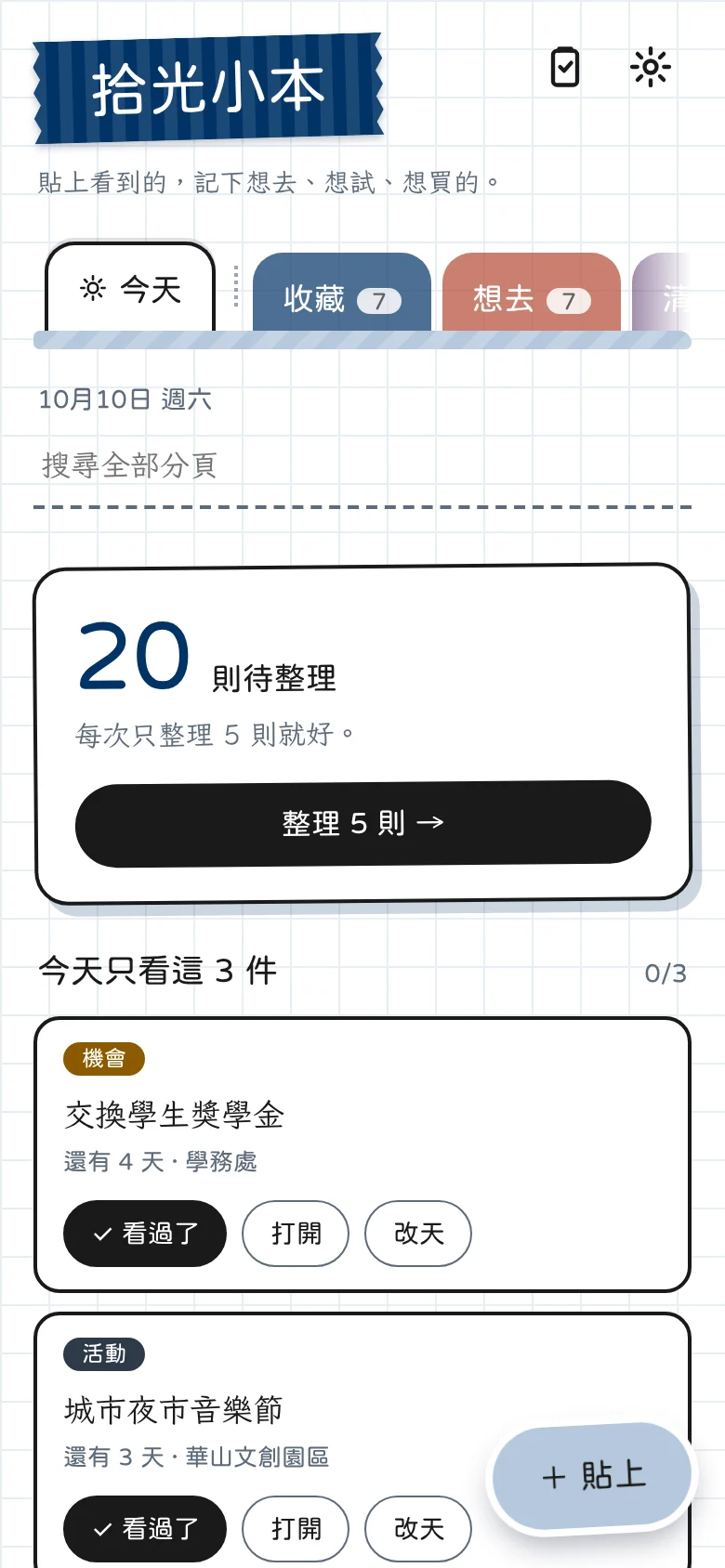
What got builtA Today page, one-card-at-a-time tidying, daily reminders and an archive you can restore from for 90 days. Notes stay on the user’s own device, with no account, and a JSON backup you can export.
Key decision
Three things a day
The more you save, the less you open. A review that becomes a long to-do list is just more pressure.
- Decision
Tidy five cards at a time: swipe left to archive, right to keep, or “later”. The Today page shows just three things: whatever is due soon first, then whatever has waited longest. Anything untouched for over 45 days comes back to ask once more.
Finishing a round earns a “Tidy complete” stamp, but there’s no leaderboard and no nagging.
- Trade-off
Data lives on one device. That’s good for privacy; the cost is remembering to export a backup before changing phones.
03Alongside
The look: a notebook of your own
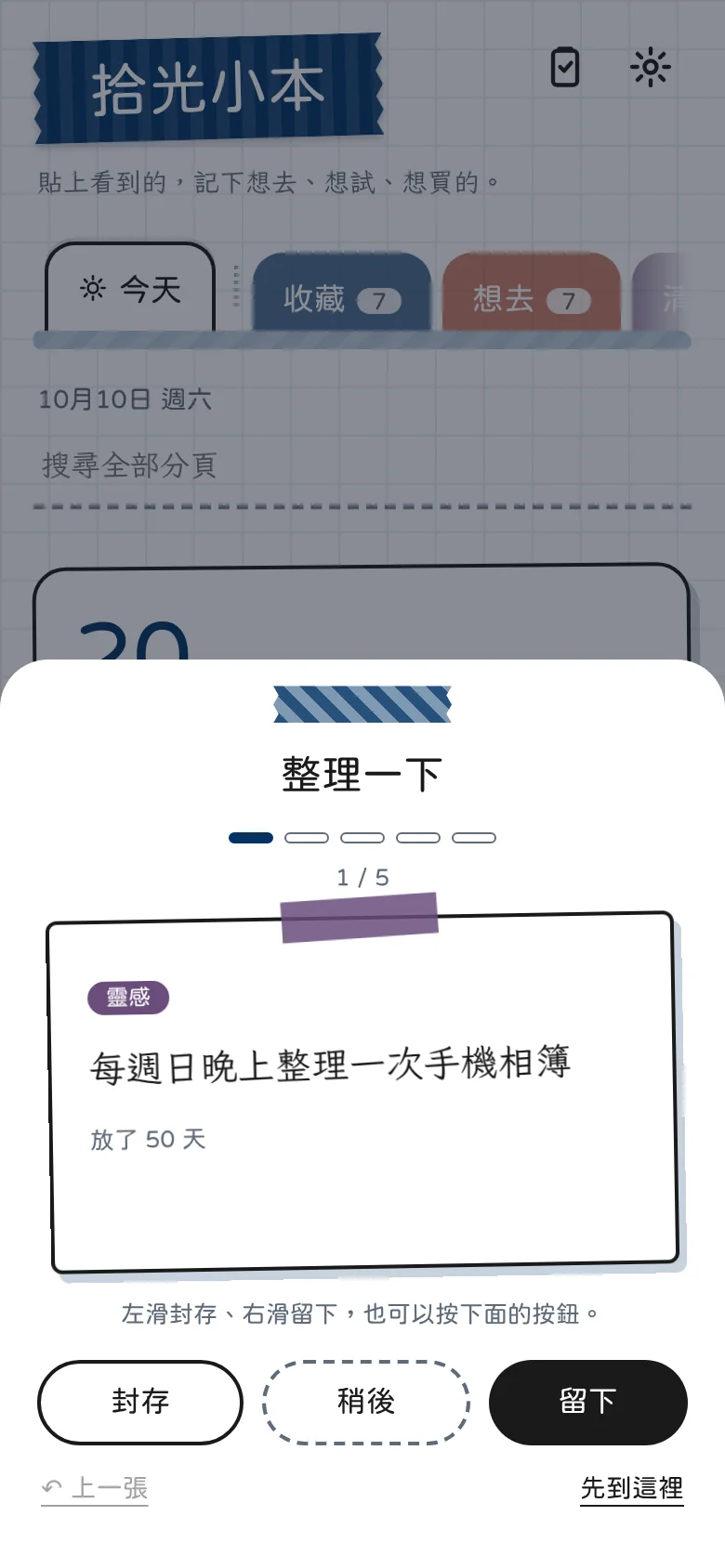
What got builtThe collage-style interface and the shop-front opening; later Chinese and English, dark mode and adjustable text size.
Key decision
Quiet, but recognisably its own
Collecting apps tend to look alike: white backgrounds, cards in neat rows. I wanted it to feel quiet to use, and still look like a GRACE STUDIO piece when you open it.
- Decision
A scrapbook look: sticky notes and washi tape, like a notebook of your own. Instead of the usual pastels it uses the studio’s navy, white and charcoal.
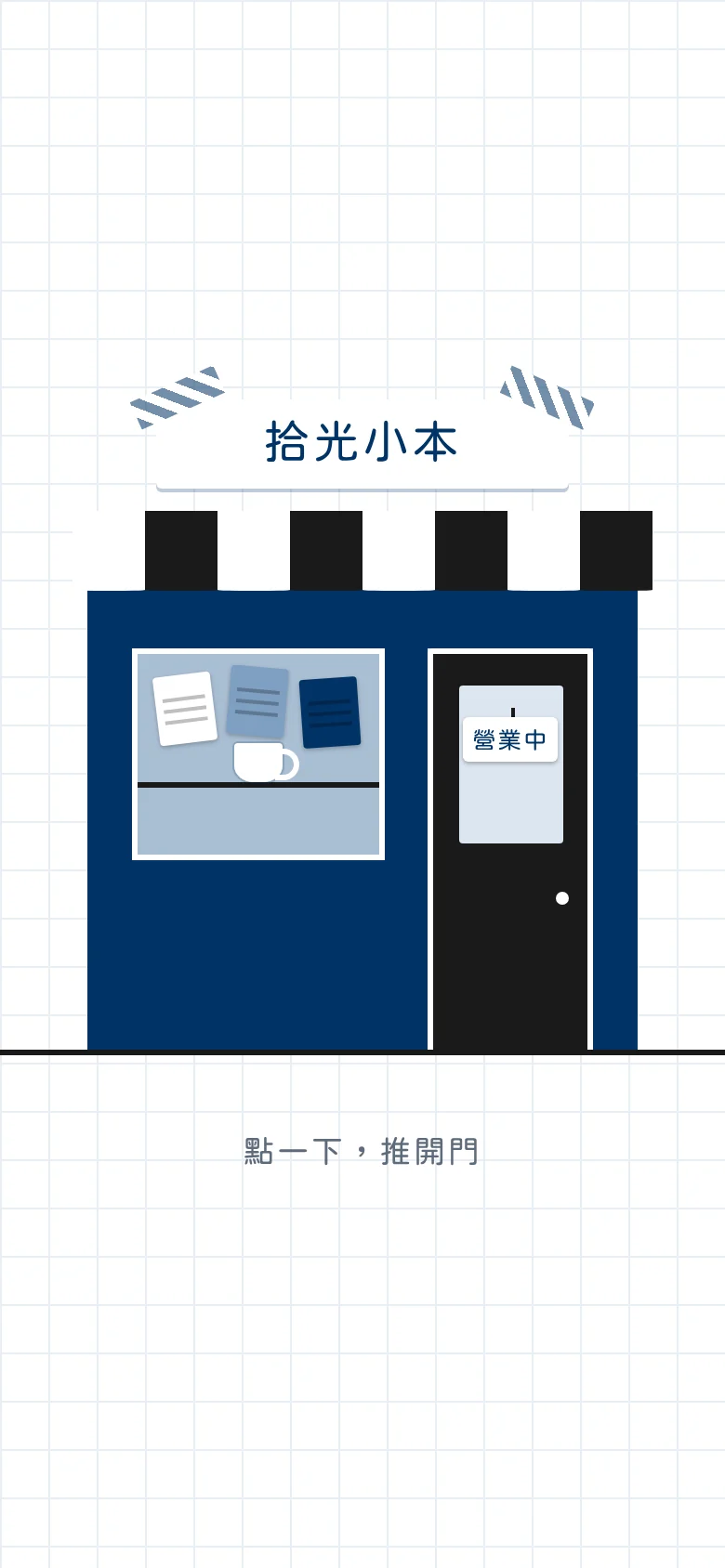
It opens on a small shop front; tap and the door opens, like walking into a little shop of your own.
- Trade-off
A collage has many pieces, and details easily look busy. That’s still being refined.
04October 2026
Smart paste: from rules to AI
What got builtThe first “smart paste” used rules: keywords and the shapes of dates, links and prices. In October, for the Nebius × NVIDIA Global AI Hackathon (Best Apps & Agents track), sorting moved to AI; the entry went in on 23 October.
Key decision
Why it didn’t use AI at first, and why it does now
Rules came first because AI calls cost money I couldn’t cover. But rules only look at patterns and trip over anything phrased differently, and I judged that frequent wrong sorts would put people off.
- Decision
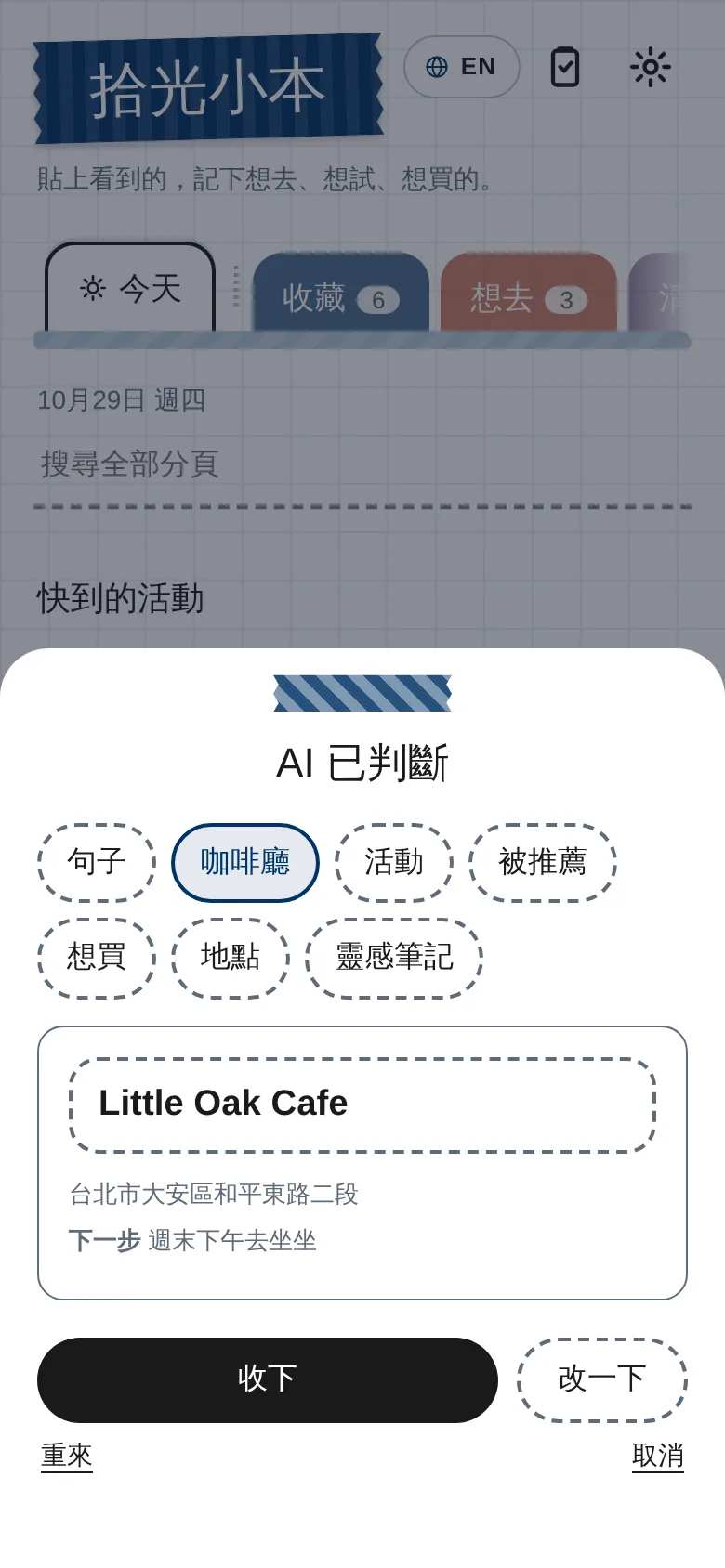
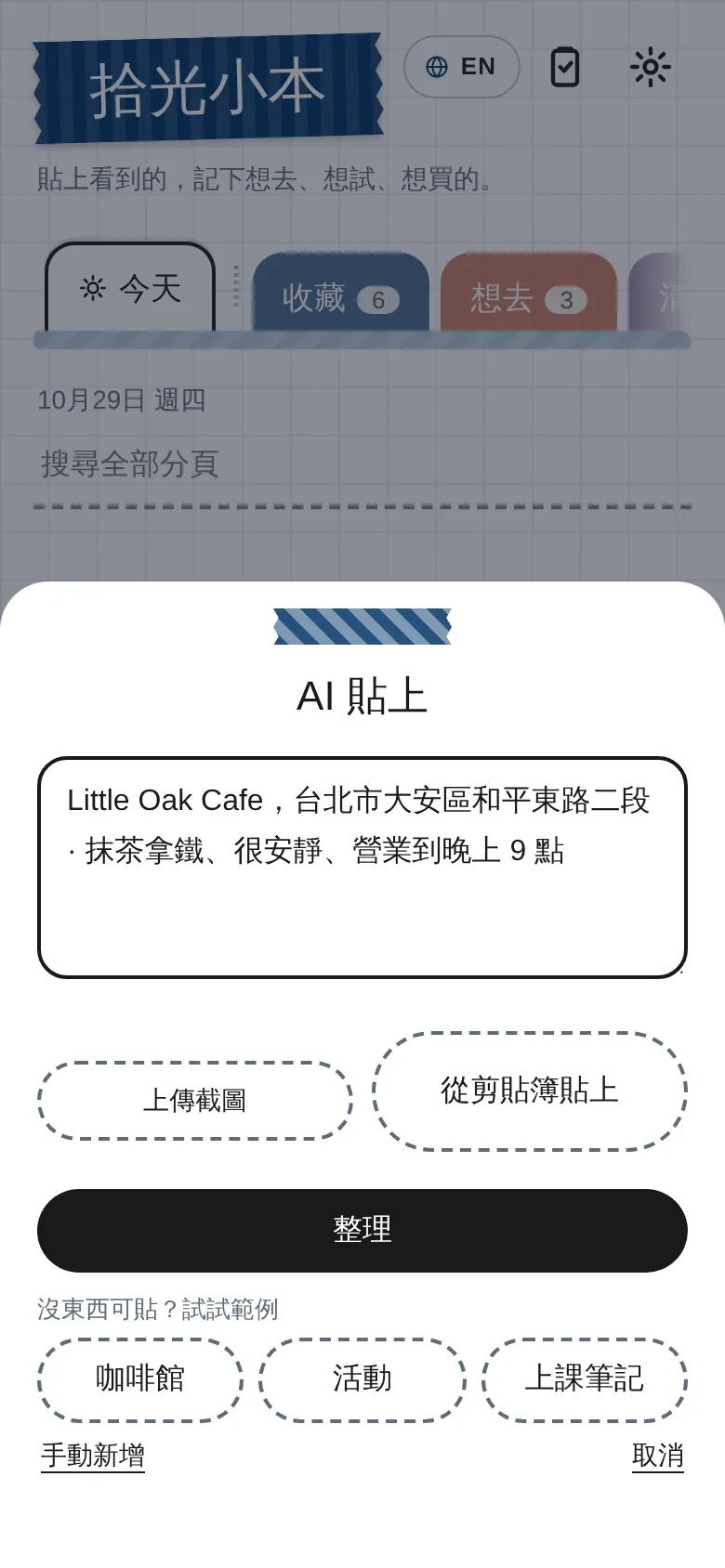
Paste text or drop in a screenshot. AI reads out the name, date, place and deadline, decides whether it’s a quote, a café or an event, and can check details online.
Anything unclear is flagged, and nothing is kept until the user confirms. If AI is unavailable or the daily limit is reached, it falls back to the old rules.
- Privacy
Only what the user pastes at that moment is sent for processing, never their other notes, and it isn’t kept. The AI endpoint only accepts requests from the app itself.
- Trade-off
Every AI call costs real API fees, which I cover myself, so the app is still marked as testing and how it’s offered may change.
Input
Paste, or drop in a screenshot
A lot of what people save is already a screenshot: stories, event posters, a café someone sent.
- Decision
One entry point for both text and screenshots, with a few examples to try when there’s nothing to paste.
Current limits
- AI paste costs money on every call, which I cover myself; how to offer it long-term isn’t decided.
- Data lives on one device with no cloud sync; changing phones means exporting and importing a backup.
- On iPhone you can’t save straight from the Share menu yet; use copy and paste.
- A closed web page can’t wake the phone, so reminders may be late; a calendar reminder can be exported instead.
- The collage look still needs refining.
Next case study